Keyboards should be important for anyone serious about programming, gaming, or computer usage in general.
They are your main interface for interacting with the machine. They should, at the bare minimum, not hurt you physically.
This is sadly not true for the vast majority of keyboards.
Many are not designed for user comfort, and the default layout on most English boards is terrible.
This post primarily compares the Kinesis Advantage 360 and the Ergodox, because those are the only 2 boards so far that have met my standards for regular usage.
Layouts
There are mountains of blog posts, forums and comments about how QWERTY is a suboptimal layout. I don't actually think it matters very much.
What little gain you get from learning a different layout is usually offset drastically by how inept you become at operating other people's computers.
I don't use QWERTY, however my reasoning is different.
The main reason I would recommend learning an alternative layout is for keyboards that are very different to the standard US QWERTY slab.
The shape of the keyboard itself is much more important than the layout, but if you're going to switch to, say, a split ortho board, then you might as well learn a more efficient layout along with it.
Your brain is good at separating the muscle memory for a normal board versus a split ortho. It doesn't mess with your existing muscle memory in the same way that using a gamepad doesn't make you forget how to type.
The layout optimisation rabbithole goes deep, but I personally went with Dvorak. It is efficient enough that any gain in using alternative layouts isn't very large. Purely by coincidence, it also has good locations for common Vim functions.
Dvorak has good support across all 3 major desktop operating systems, but for the most hassle-free setup I would recommend mapping the layout in hardware instead.
Hardware maps mean you can plug the keyboard into any typical PC in any configuration, and your layout stays the same.
The computer thinks the keyboard is US QWERTY, but the keys are in different locations physically.
This is extremely useful when going through OS installs, navigating a BIOS/grub menu, or just controlling some other random computer.
Form over Fn
Spread
The single most important aspect of a keyboard is the shape.
Any board that I'm going to use for a long period of time must be split.
There are ergonomic reasons for this of course, but the primary benefit to productivity is the thumb clusters.
So many shortcuts and interactions become much easier with well-designed thumb clusters.
Curves
A second trait that makes for a good board is concave keywells.
Our fingers are, obviously, not all the same length and strength. The main reason that most keyboards are flat is because PCBs are flat. Curved boards must use a flex PCB and more complicated manufacturing, which increases cost.
Flat boards may fit better into luggage, but I can use the curved Kinesis Advantage for much longer than a flat Ergodox.
Pressure
Much of the experience of typing comes from the switches.
This is the least important for productivity and ergonomics, yet receives a lot of attention.
As of the time of writing, I prefer using Chosfox Dune Fox switches for the typing keys. They are exceptionally smooth linear switches with very little stem wobble, and affordable.
Some keys, like Super/ESC/Print Screen/Numlock get clicky switches.
Touch
Most keyboards use ABS keycaps. Nicer ones will use PBT.
I like metal. They're durable and it wicks heat away from my fingers.
If metal interests you, I'd recommend the Teamwolf stainless steel caps. They're the most durable metal keycaps on the market.
Awekeys have nice looking keycaps, but only as long as the coating doesn't scratch off, which has happened to a few of my keys.
Most people will probably just want PBT caps. They're a good middle ground of price and quality.
Layers
A good keyboard should be able to remap keys, as well as bind arbitrary layer shifts.
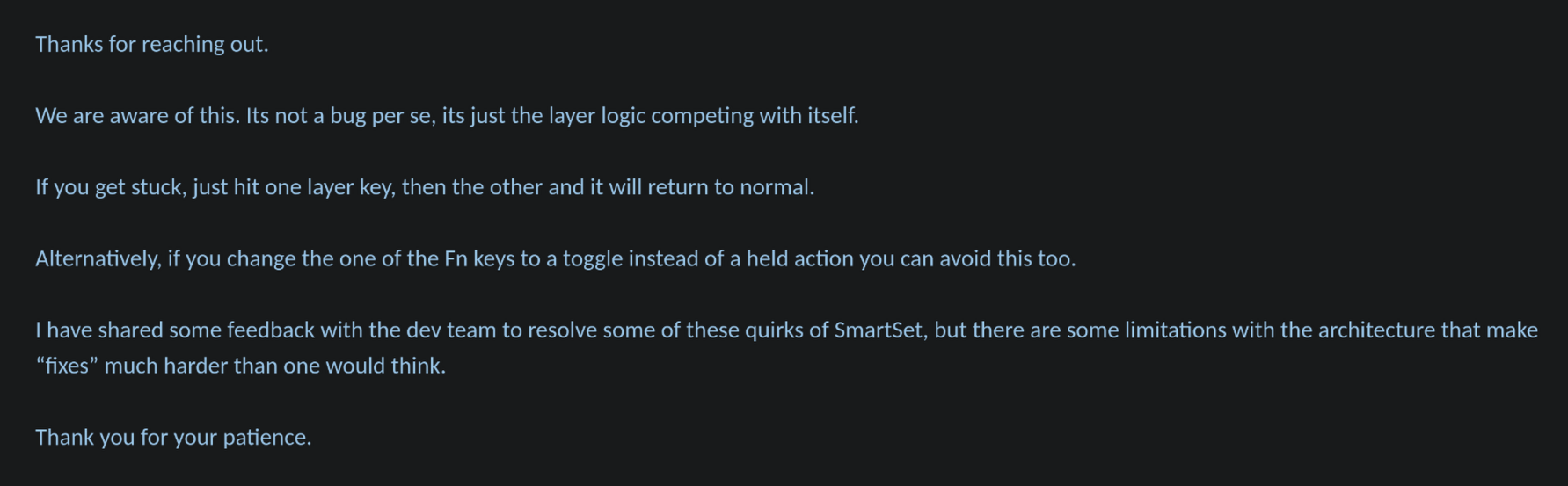
This is technically supported by the Advantage 360, but there is a bug with combined momentary layer shifts. It will get "stuck" on one layer if you press and release them in the wrong order. Kinesis is aware of this bug, but it sounds like there's some kind of tech debt in their firmware, and they're resistant to fixing it:
The ability to type symbols or navigation keys using a layer shift unleashes enormous ergonomic gains. Layers don't take very long to learn, either. Most people are fine with the concept of a Shift key.
In many popular programming languages, you'll be typing symbols more frequently than uppercase characters. By default, a QWERTY board requires a shift and a reach for the number row. Some symbols are even typed by shifting another symbol (like <, >, and ?).
This puts a large amount of strain on your weakest fingers.
What I Use
Layouts are very personalised, but maybe this serves as a good jumping off point for anyone else who has the same priorities as me (programming + gaming, but without the hassle that usually comes with being "weird").
My setup has now mostly stabilised. It's created for boards that have 6-key thumb clusters.
Main Layer
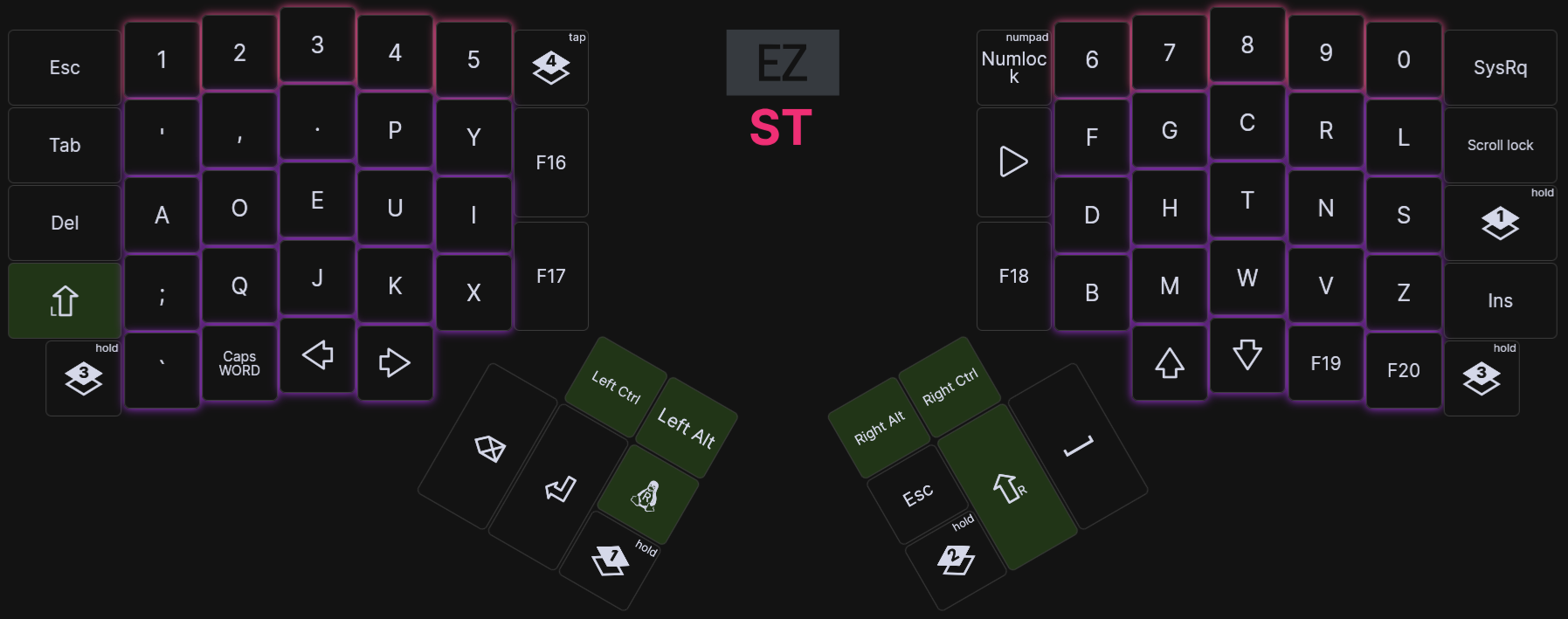
Mostly standard Dvorak. The layout of the thumb clusters is designed for easy shortcut usage, and combos with common mouse interactions.
I try to avoid chords and shortcuts on the same hand, because that's a large contributor to joint strain.
Evangelists will tell you that using the mouse is less efficient, but this is only true for narrow cases like programming. CAD and 3D modelling will require a mouse input to be productive.
Placing the Super key on the left thumb enables easy window management shortcuts, like Super + mouse drag in KDE Plasma.
There are interactions where Shift/Backspace/Delete/Enter is combined with mouse clicks on various programs. For example, multi-selecting files in a file manager, deleting a line of text, or clicking on a UI element and confirming with Enter. These are all available on the left hand.
Ctrl and Alt are so ubiquitous for various shortcuts that they get dedicated positions on both hands, which minimises strenuous single-hand chords.
The F16-20 keys are available for custom shortcuts, like microphone control and media playback.
Lesser used keys like Numlock, Print Screen and Insert are placed on the right half, where they're usually only needed during typing (when both hands will be on the board).
#1: Symbol Layer
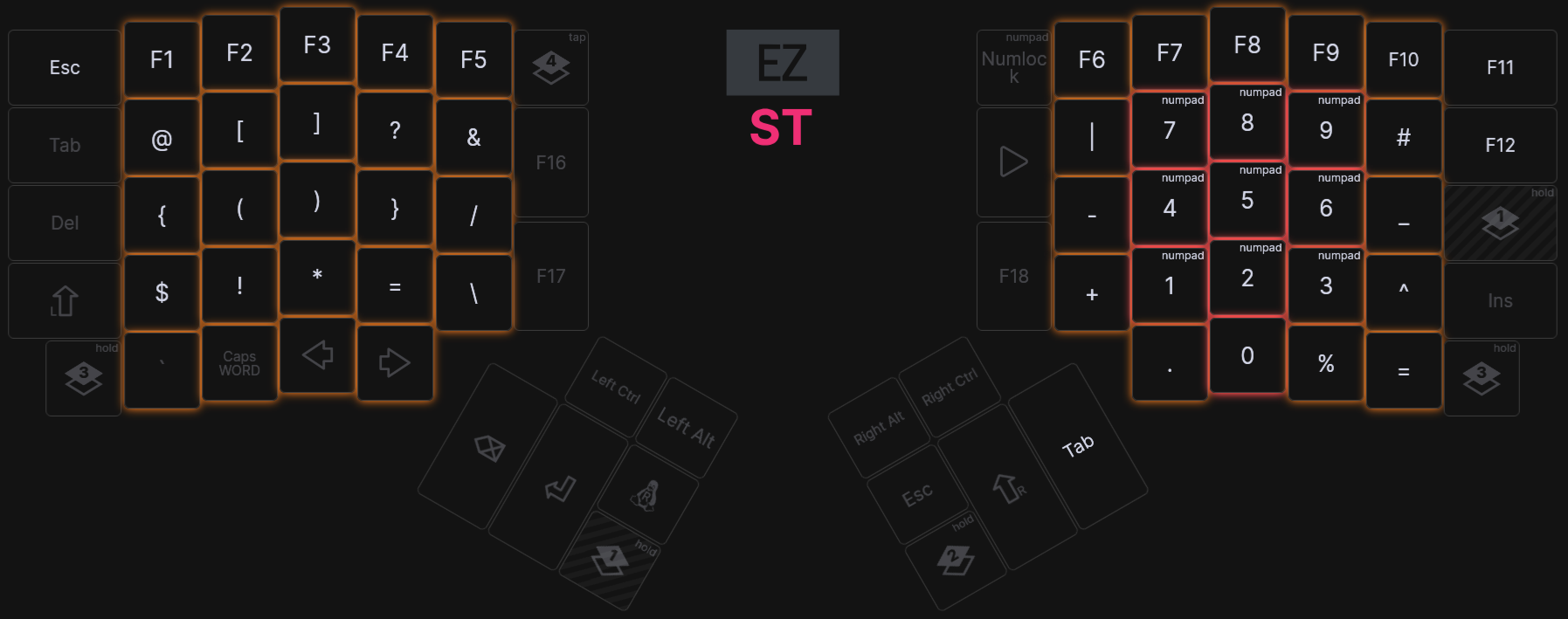
The good stuff. The brackets are made for inward rolls. I find it easier to go pinky-index than pinky-ring, so the curly braces surround the brackets, instead of being side by side like many other layouts.
In C-esque languages, many operators can be combined with assignment.
It is easy to type them with either with inwards rolls (like != and *=),
or using alternating hands (like += and -=).
There are also many operators defined by repeating keys. These are placed on the inner columns, to make them easy to double-tap with index fingers:
&&, boolean AND||, boolean OR//, a frequent comment prefix++, usually an increment operator
While the main layer has a number row, it's mostly as a backup. I usually type numbers with the numpad in the symbol layer exclusively. It's much more comfortable.
#2: Navigation Layer
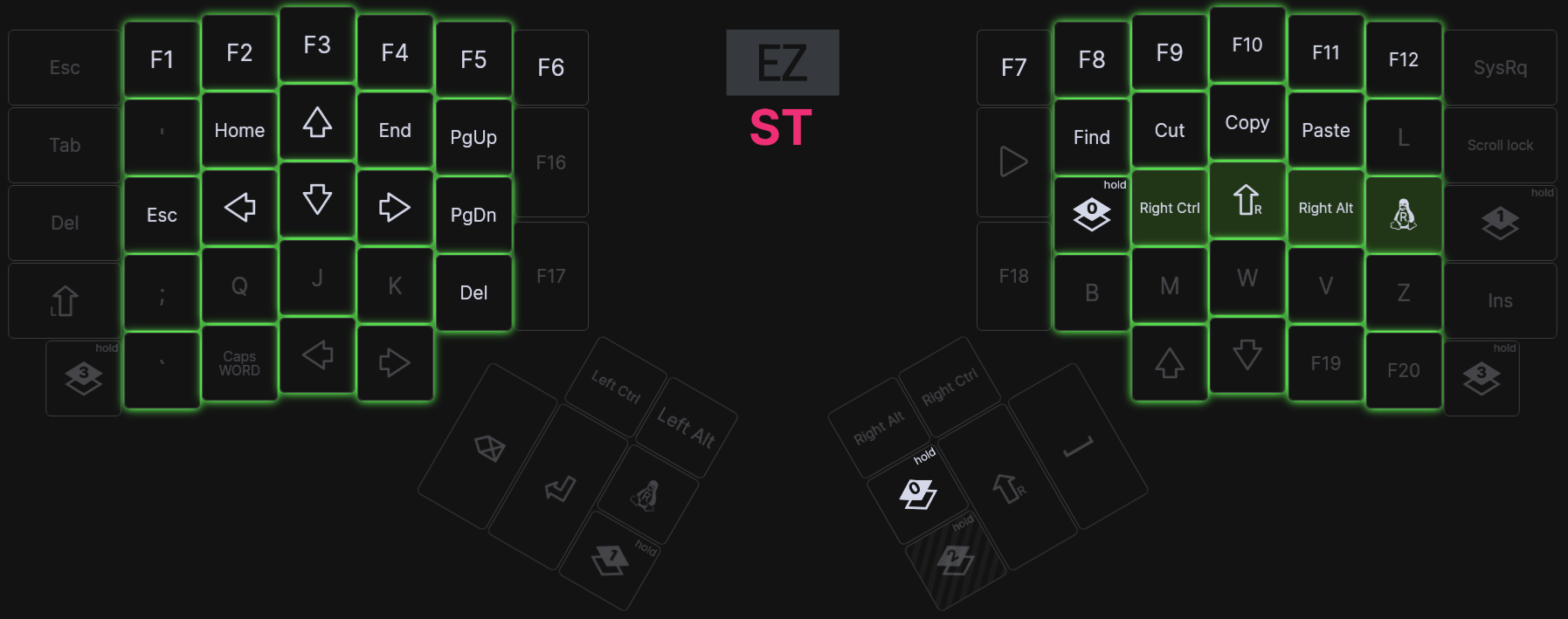
Not much interesting here. This layer is mostly used for jumping around text editors or browsers.
I also find it more comfortable to use this layer for Ctrl/Shift + Arrow Key movements.
#3 Media Layer
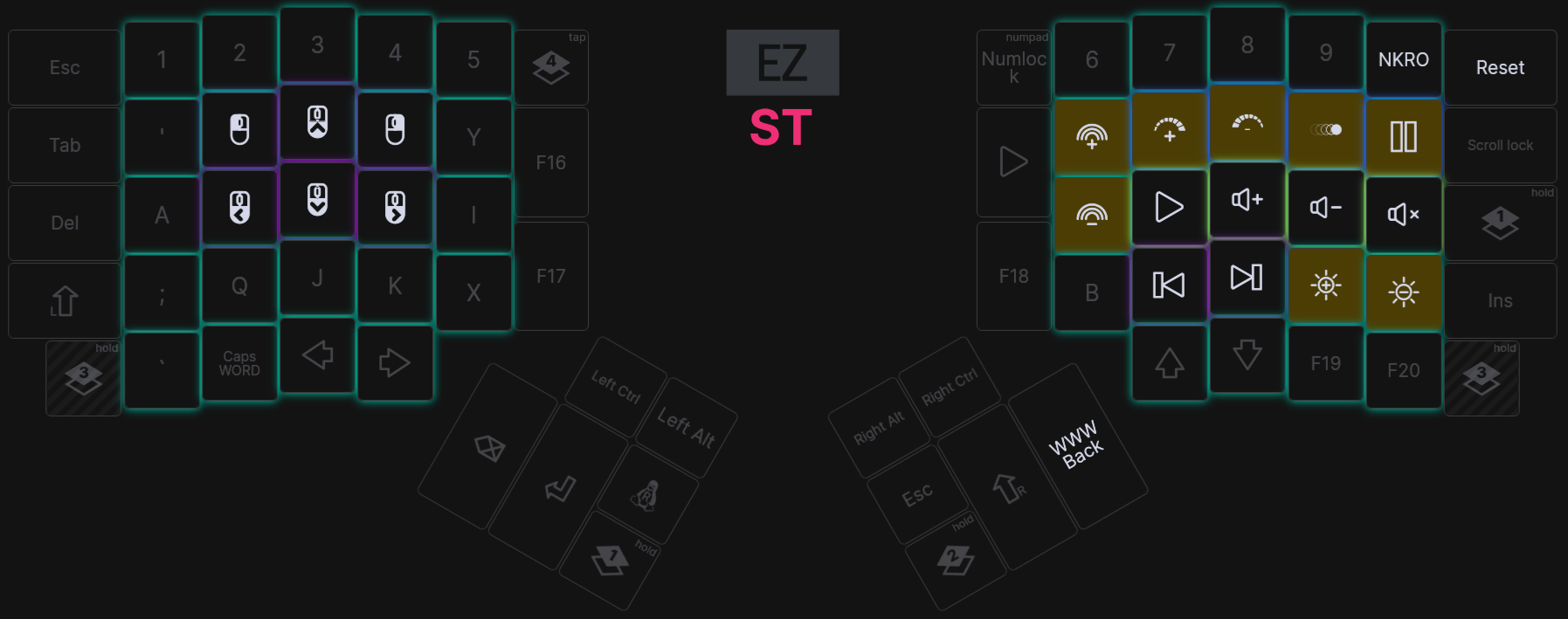
Used for music control, mouse emulation, brightness controls etc.
#4: Gaming Layer
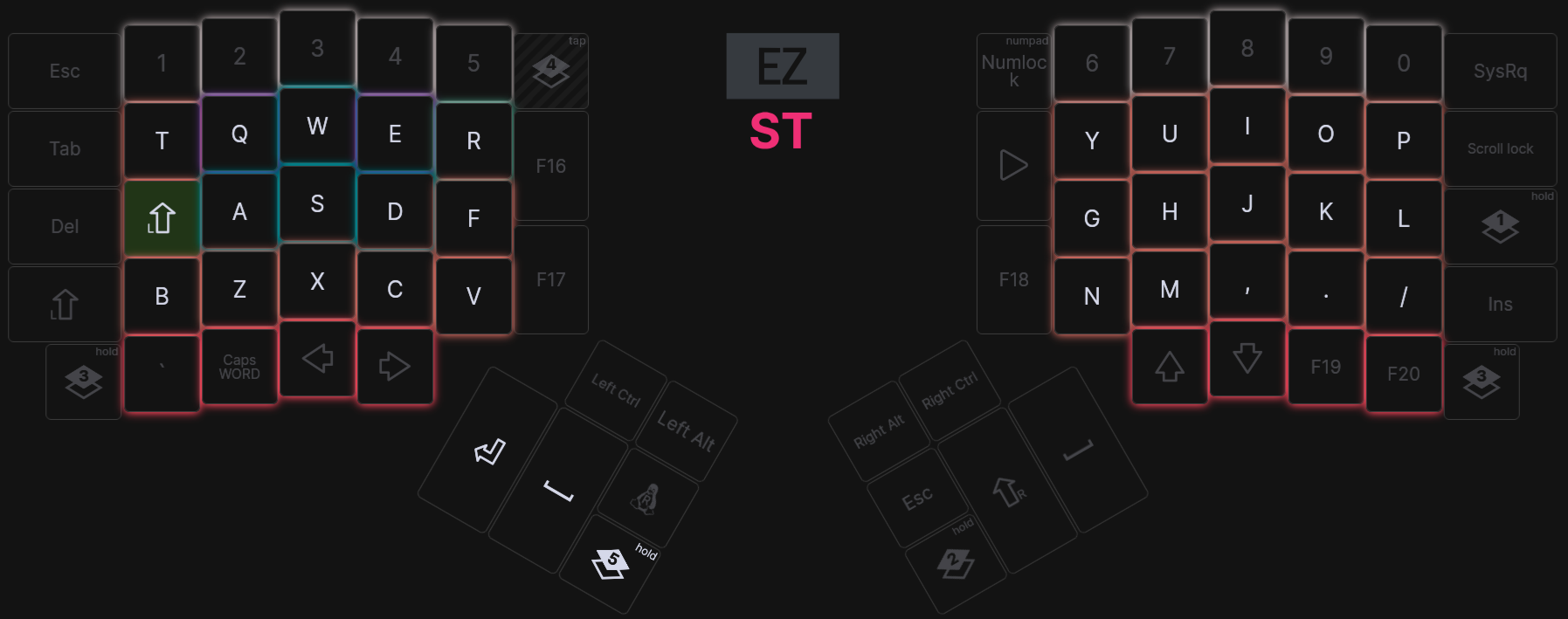
What happens when there's a game that doesn't properly support rebinding? This is surprisingly common, even with games from large studios.
Moving your hand over to the left for WASD is just not an option on curved boards like the Kinesis. The contours of the board make it very uncomfortable to use in any position other than regular home row typing.
Many games don't actually support rebinding of non-alphanumeric keys, either. The Enter and Backspace keys are often not bindable.
My solution is to take standard QWERTY, and column shift the left hand.
This is effectively binding to ESDF, but in hardware. Games think it's a regular QWERTY + WASD setup.
Space and Enter have to be swapped for jump, and Left Shift is placed where the A key would be (usually used for sprint or crouch).
This is the only layer that toggles. All other layers are a momentary hold, because it's confusing to accidentally activate multiple layer shifts, especially mid-game at critical moments.
Comments
Set a username to leave comments:
Commenting as: